Searching the catalog
Use search to find a decision, narrow a long list, or list everything that still needs a review. Searching only reads what the catalog has already collected, so it is fast and never contacts a team’s source.
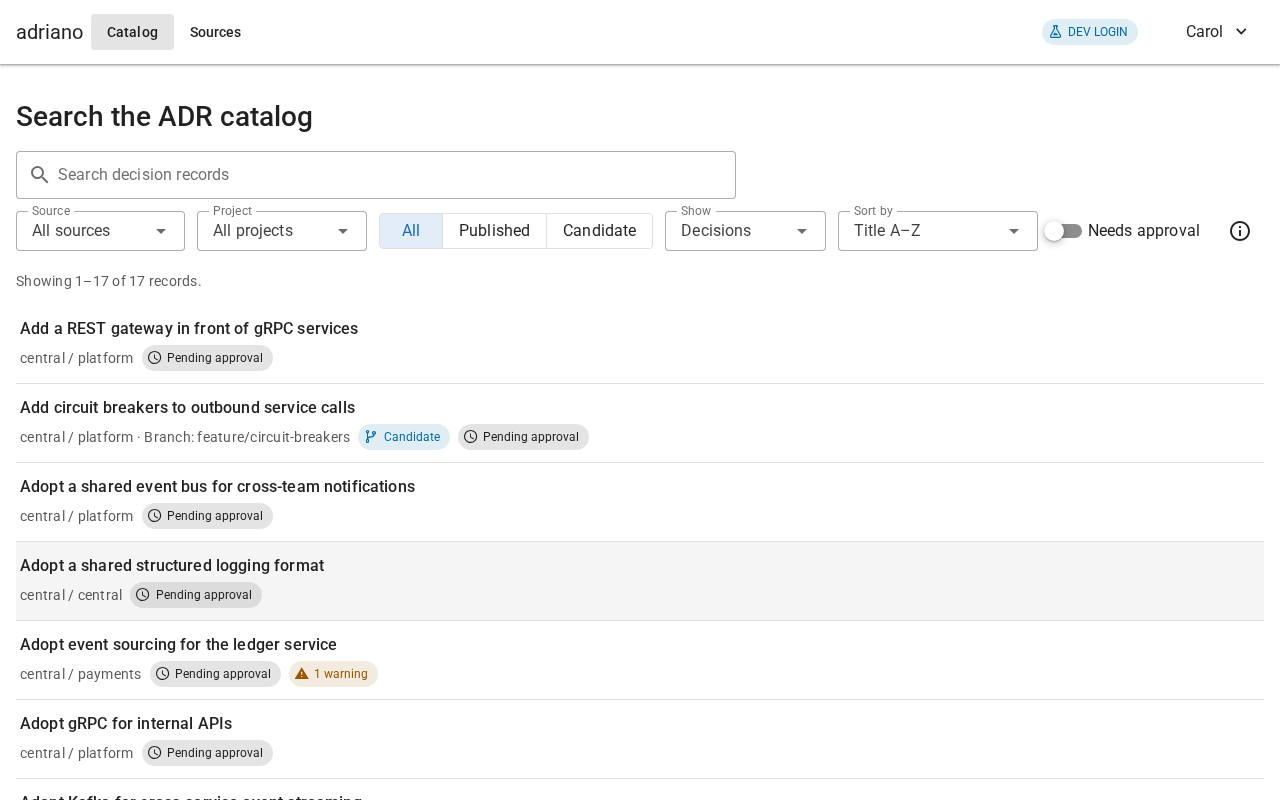
The search page, with the filter controls above the results.
Find a decision
Open Catalog in the top bar.
Type words from the title or text into Search decision records. Results update a moment after you stop typing.
Select a result to open it.
When you search for words, the results are sorted by how well they match. Without words, they are sorted alphabetically by title.
Each result shows its title, source and project, and a few chips:
Candidate with its ref, if it is a proposal rather than the published version.
The approval state, such as “Pending approval” or “Accepted”. For a correction it reads “Reported” or “Verified” instead.
Erratum, if the result is a correction.
The number of problems found in the file, such as “1 error”.
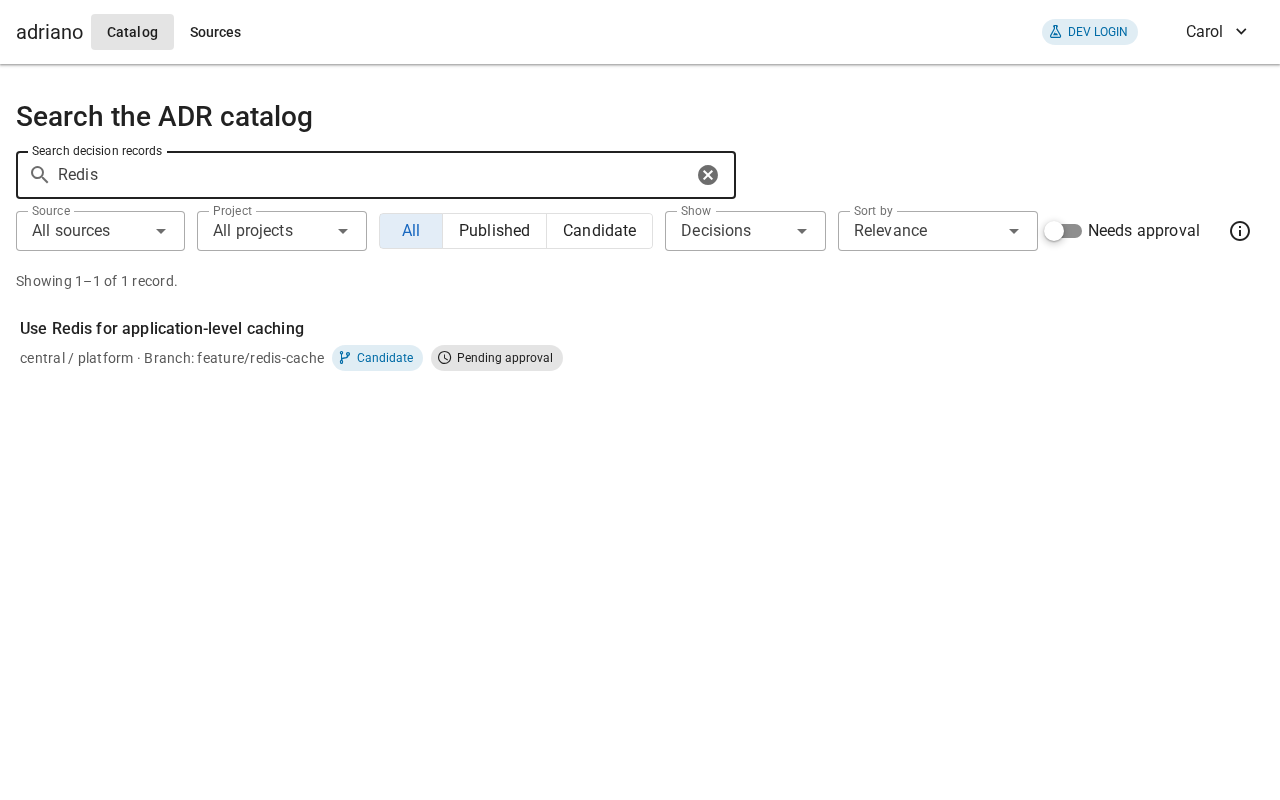
A search for “Redis” finds a candidate from a branch.
Filtering
The row of controls under the search field narrows the list. All filters combine: a result must match every one.
- Source and Project
Show only decisions from one source or one project.
- All, Published, Candidate
Show everything, only the published decisions, or only the proposals.
- Show
Choose Decisions (the default), Errata or Both. Errata are corrections to decisions; see Errata: corrections to decisions.
- Sort by
Title A–Z, Recently changed, or Relevance (offered only once you have typed something).
- Needs approval
Show only what is not accepted yet: pending, rejected or changed since acceptance. Reviewers use this to find their work; see Reviewing decisions.
A line above the list tells you how many records match, for example “Showing 1–20 of 57 records”. Long lists are split into pages.
Every active filter appears as a chip above the list. Select the chip’s close button to remove that filter, or select Clear filters to remove all of them.
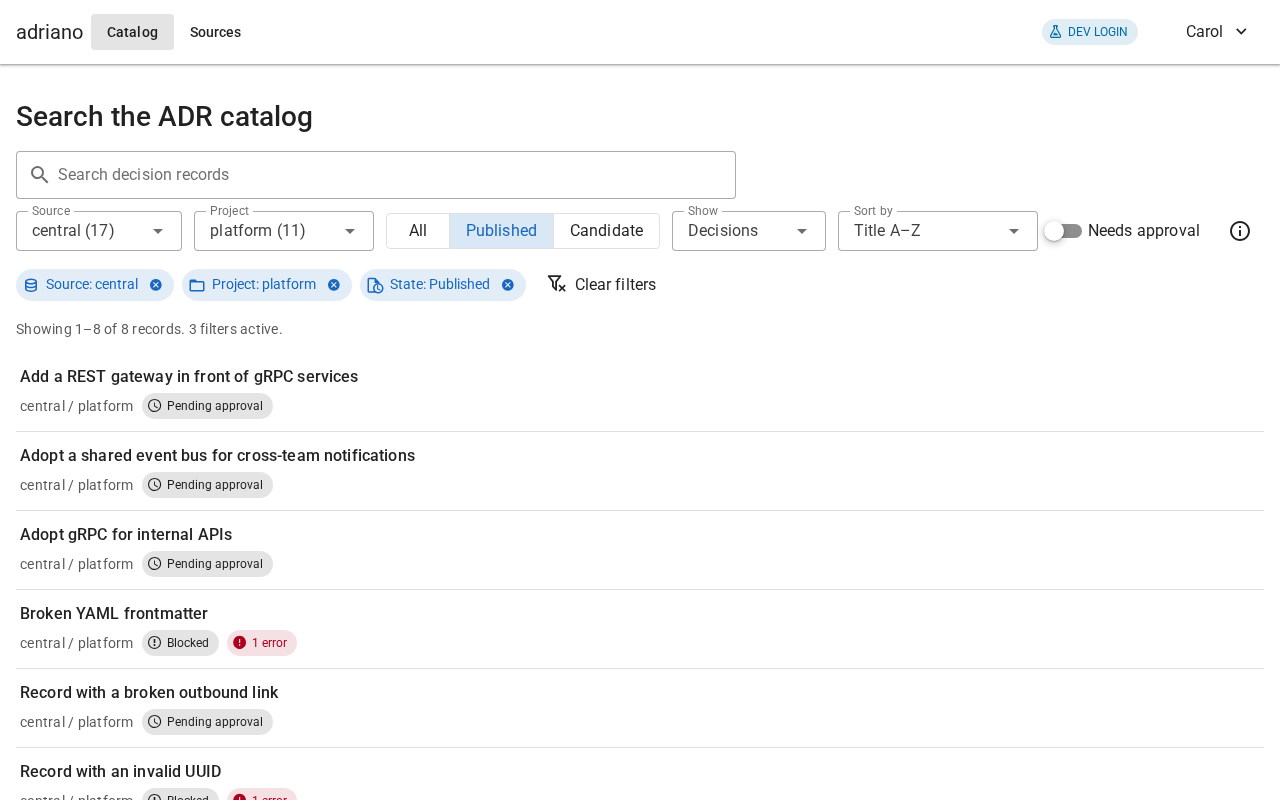
Three active filters, shown as chips.
Show errata
Errata are hidden by default so that the list stays focused on decisions. Set Show to Errata to list only corrections, or to Both to see them mixed in.
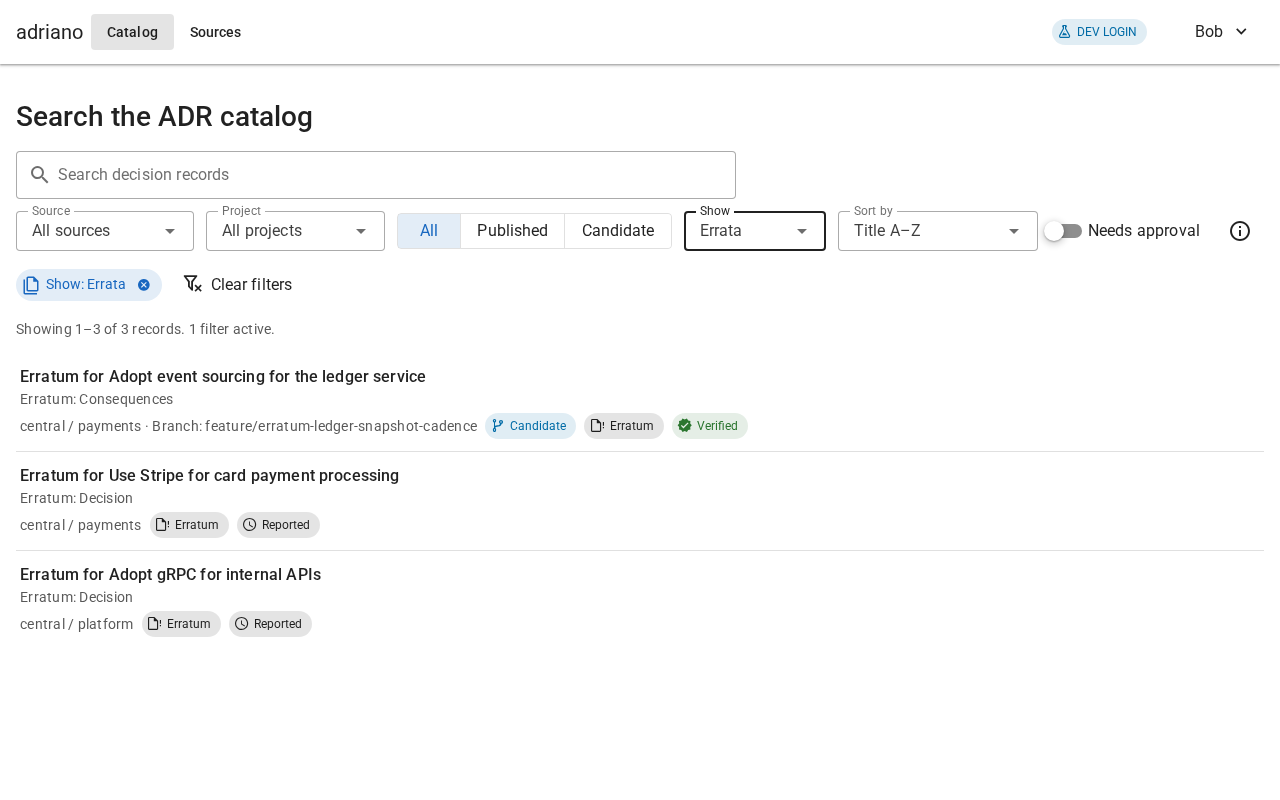
Show set to Errata.
Nothing found?
If the list is empty, the page says “No matches for your filters”. Remove a filter or shorten your words. If the catalog says “No indexed records yet”, nothing has been collected yet; ask an operator to check the Checking and refreshing sources.
On a phone
The same controls are available on a small screen. The filters stack above the results and the top bar collapses into a menu button.

Search on a phone.
Next: Reading a decision.