Reading a decision
Open a decision from the search results to read it and to see how far you can trust it. This page explains what is on the page and what the banners mean.
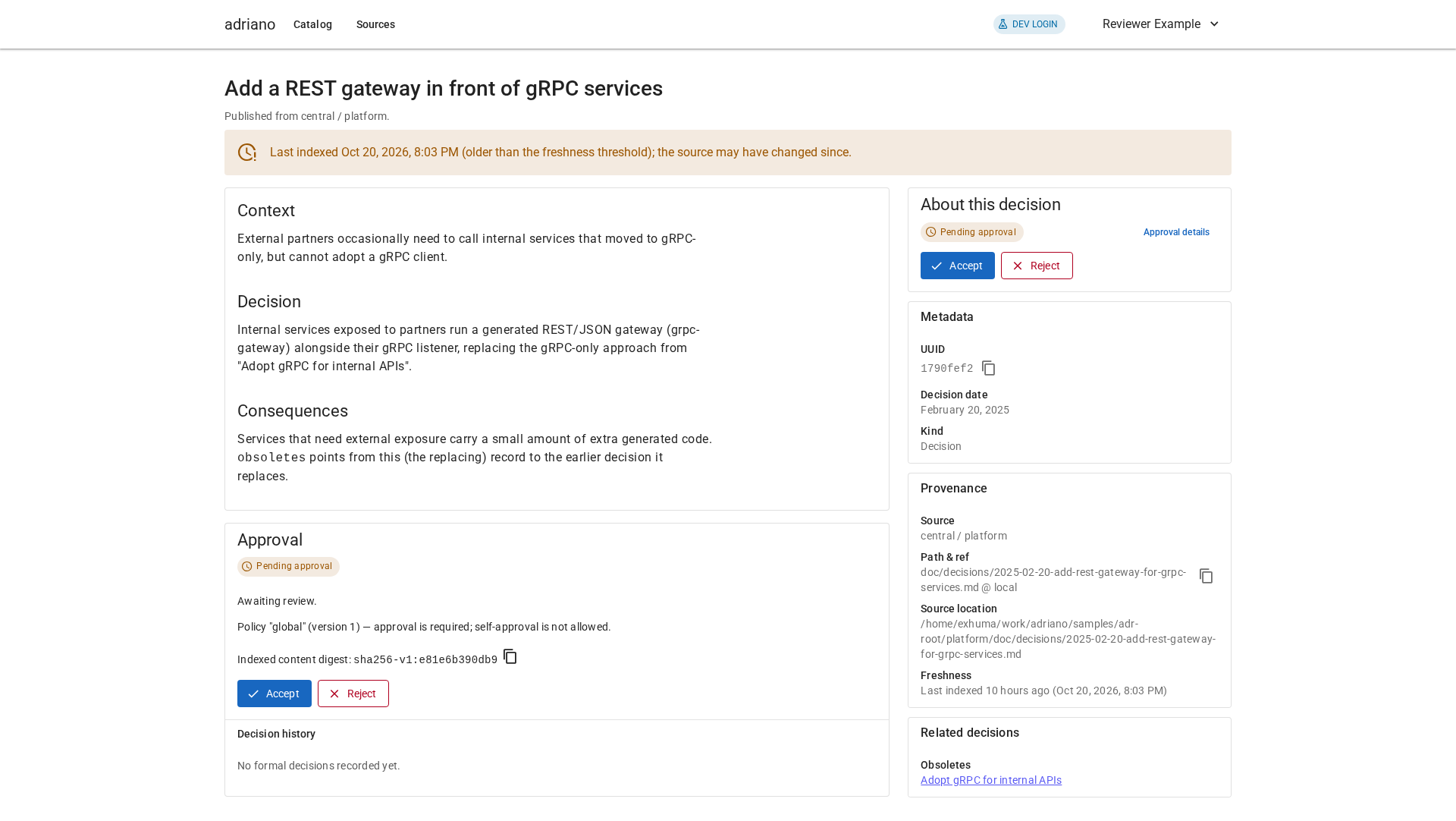
A decision page: banners on top, the document on the left, and the “About this decision” sidebar on the right.
Page layout
- Header
The title, the source and project, and where the text came from. If errata exist, a link such as “1 erratum · View errata” jumps to them. A “2 warnings” or “1 error” chip appears here when the file has problems; see Problems in the file.
- Banners
Notices about the decision as a whole; see Banners.
- The document
The decision itself, as its authors wrote it.
- Errata
Below the document, any corrections reported for it. See Errata: corrections to decisions.
- “About this decision” sidebar
Everything that is not the document itself. On a phone the sidebar moves below the document.
Banners
- “This decision is obsolete, see …”
A newer decision replaced this one. Follow the link and read that one instead.
- “This decision was updated, see …”
A newer decision changed part of this one. Read the newer decision alongside this one.
- “This is an erratum for …”
Shown on a correction’s own page; see Errata: corrections to decisions.
- “The last poll of … failed …”
The catalog could not refresh this decision from its source, so you are reading the last copy it successfully collected. It may be out of date.
- “Last indexed … (older than the freshness threshold)”
The catalog has not refreshed this decision for a while. It is probably still right, but it has not been confirmed recently.
- “A different revision of this ADR was accepted”
An earlier version was accepted, but the text changed since. The text you are reading needs its own decision.
- “The published revision of this ADR differs from this candidate”
You are reading a proposal that is not the same as what is currently published. Follow the link to compare.
- “Competing candidates”
Several proposals exist for the same decision. A decision on one never affects another.
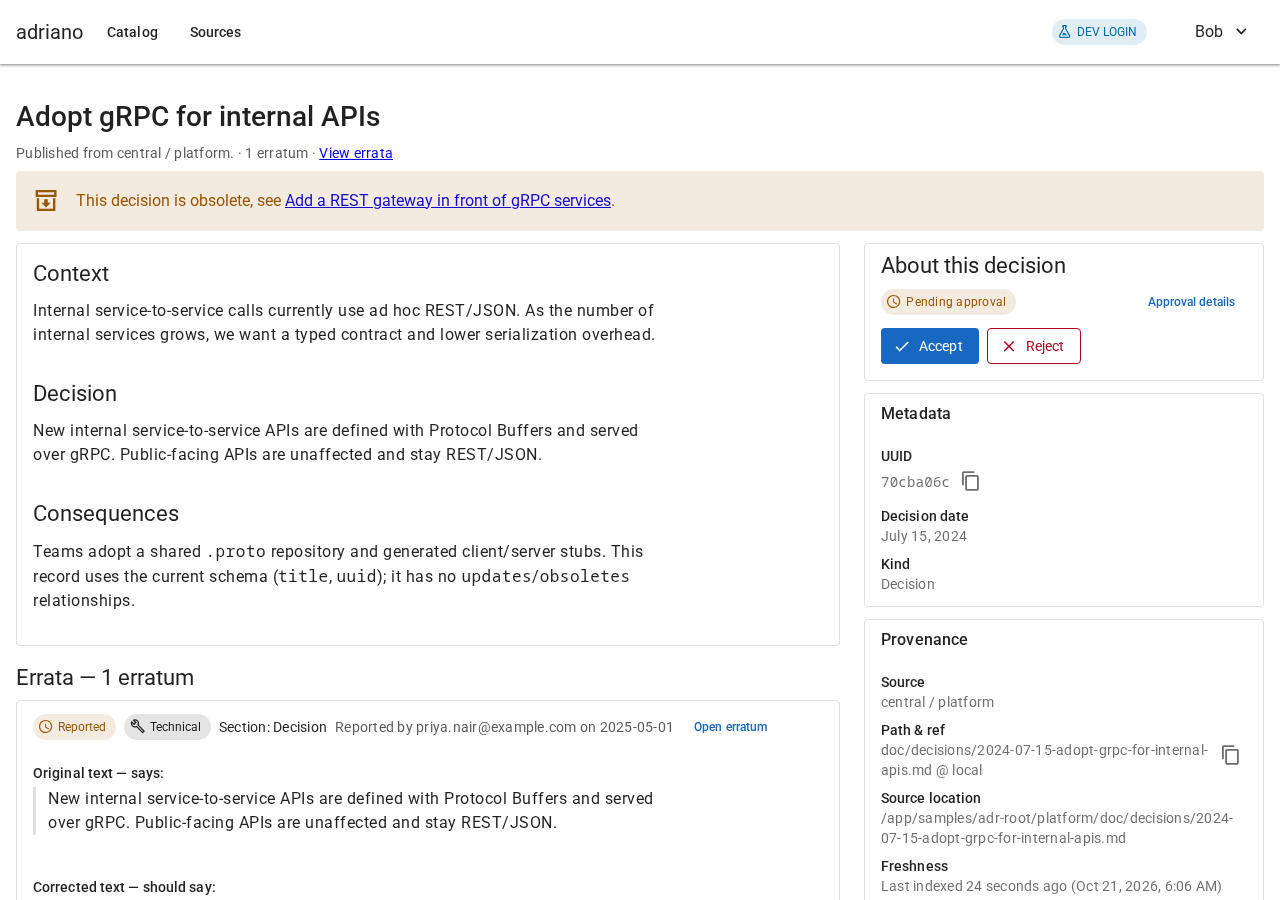
An obsolete decision, with a link to its replacement.
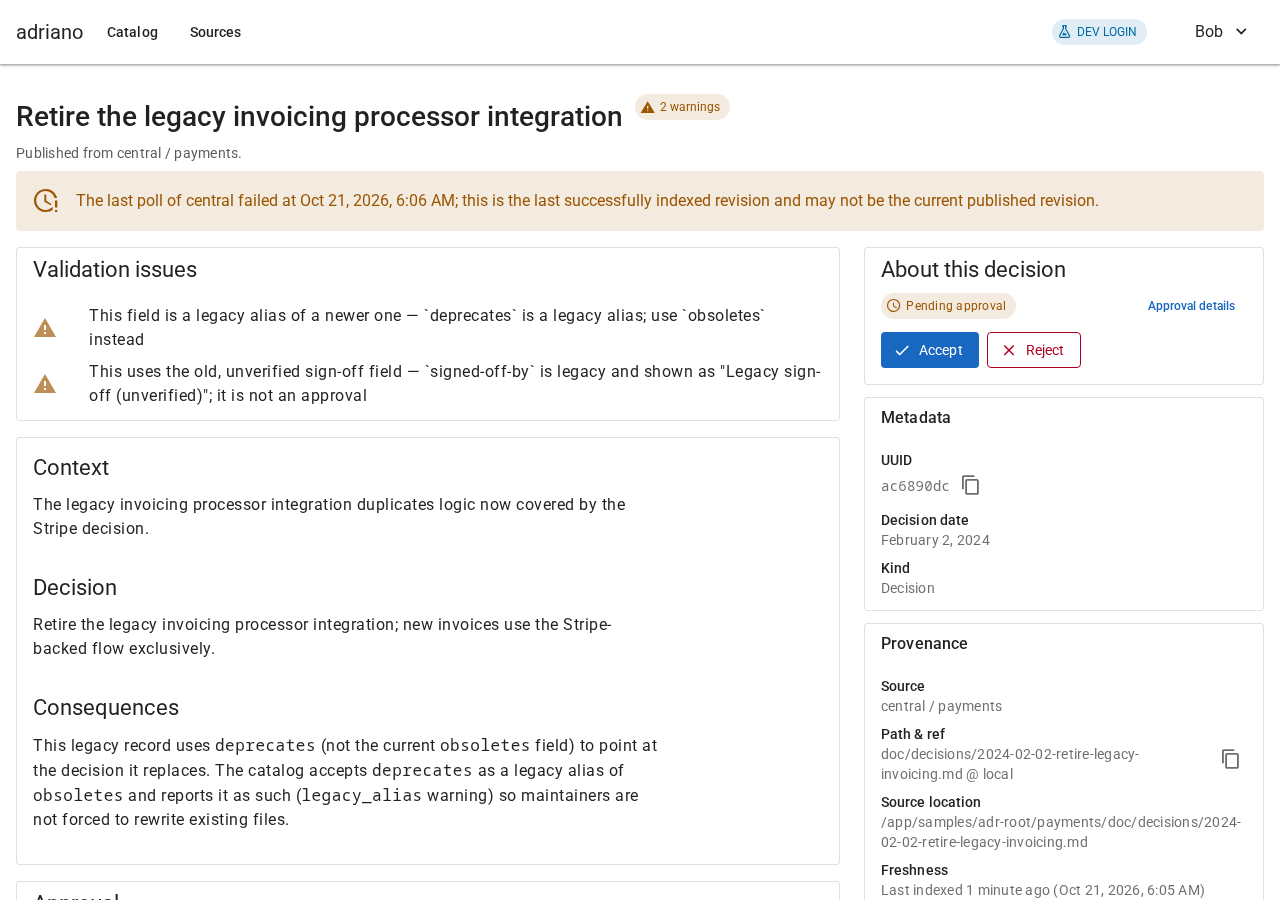
A warning that the catalog could not refresh this decision.
Published, candidate and which is current
The title line shows “Candidate” with its ref if you are looking at a proposal. A published decision is the version your team has published. If both exist, Other revisions links between them.
After a candidate is published, the published version appears with the same text. If a reviewer already accepted that exact text, the published version is accepted too, and keeps the same decision history.
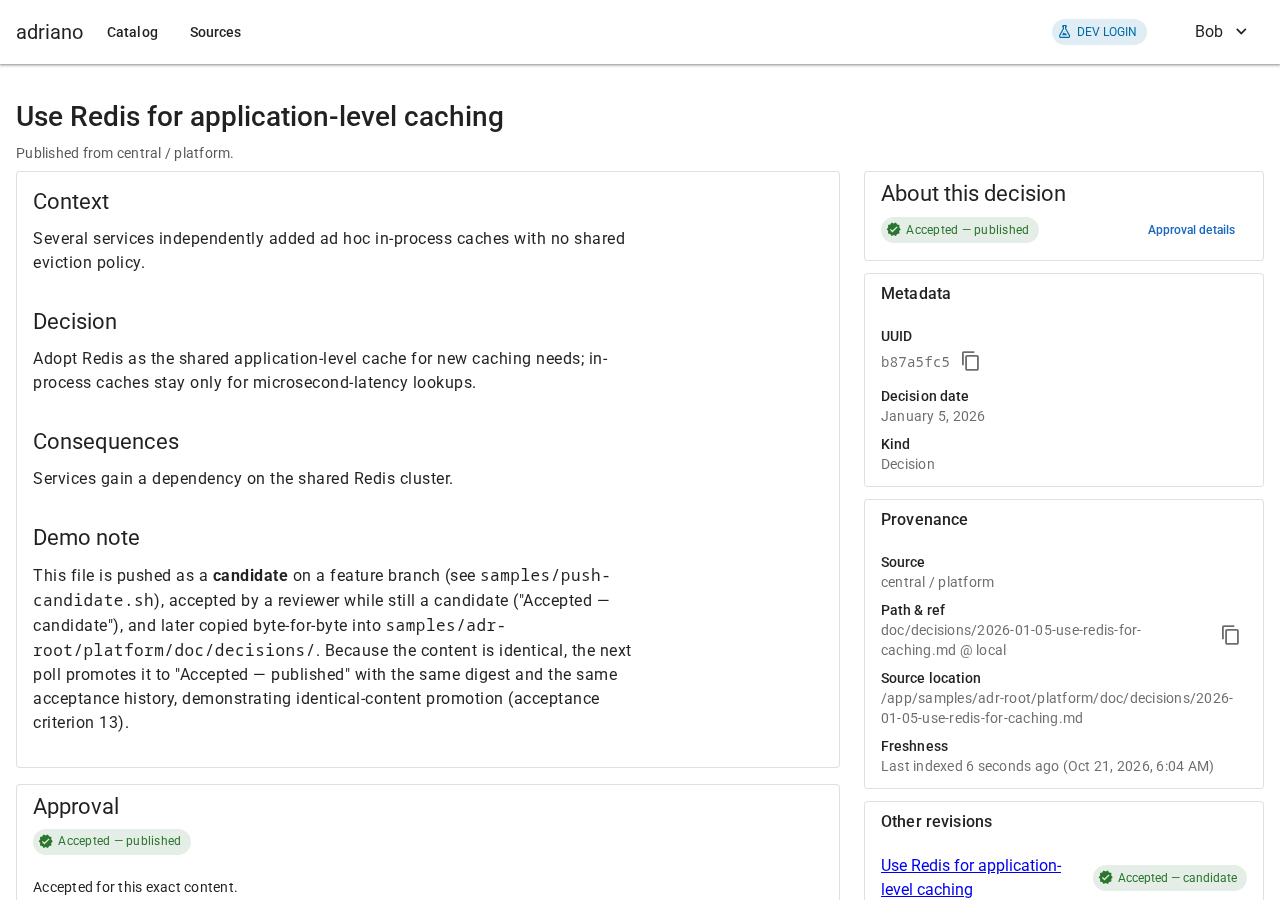
A published decision whose candidate was accepted earlier.
Problems in the file
The catalog shows every decision it finds, even if the file has problems, and a problem in one file never affects another. Problems are listed in a Validation issues card next to a chip in the title:
- Warning
Something to tidy, but the decision still works. For example, the file uses an old field name or lists a link to a decision that cannot be found.
- Error
Something that stops the catalog from working with the file properly. For example, the header is not valid or the identifier is missing.
A decision with an error shows the status Blocked, with the text “This content can’t be decided until its problems are fixed.” Ask the author to fix the file; the page updates the next time the catalog reads it. Writing decisions and errata lists the fields that are expected.
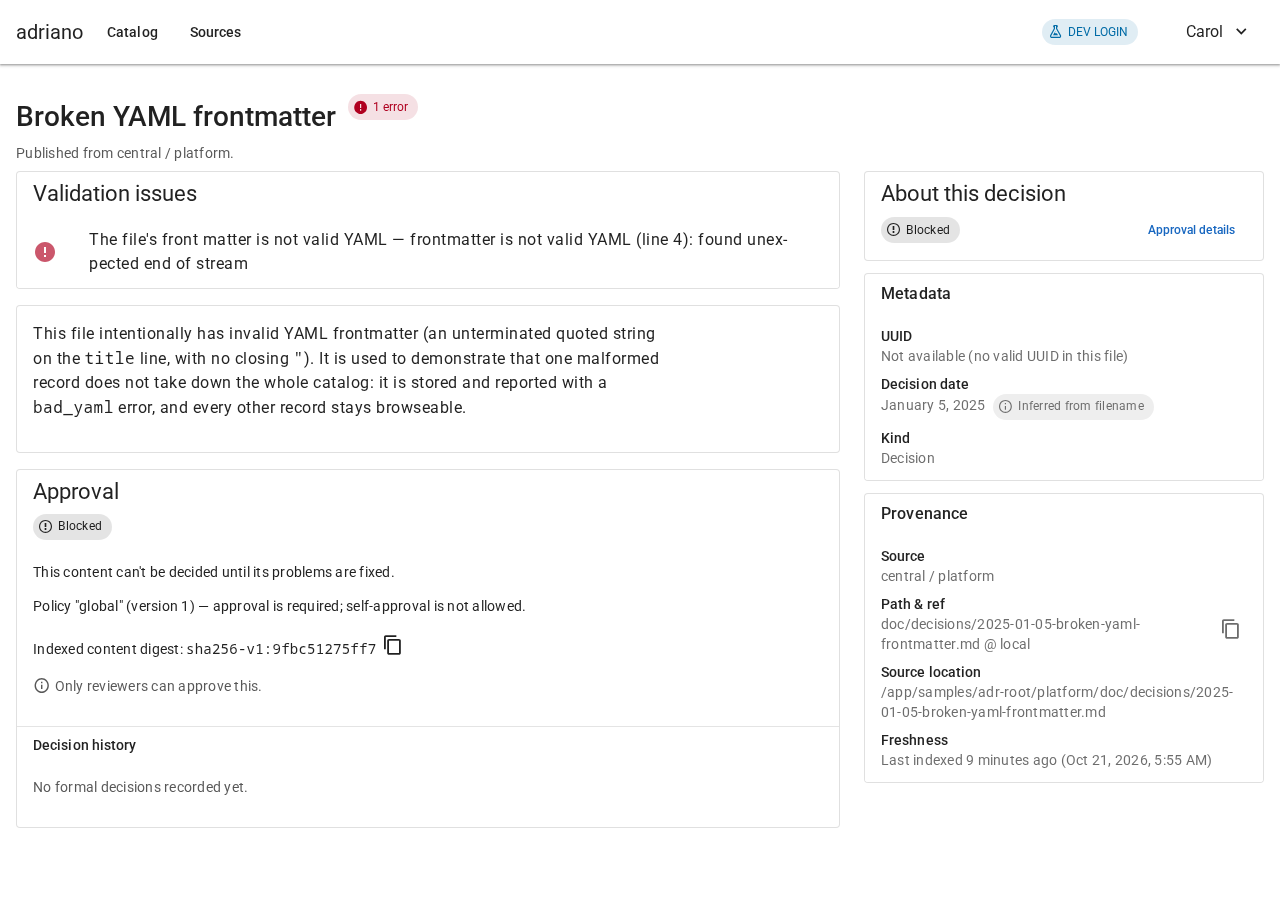
A blocked decision, with the problem explained.
Legacy sign-off
Some older decisions carry a “signed off by” line written by hand in the file. The catalog shows it as Legacy sign-off (unverified). It is only text: nobody checked who wrote it, so it never counts as an approval. Only a recorded acceptance by a reviewer does.
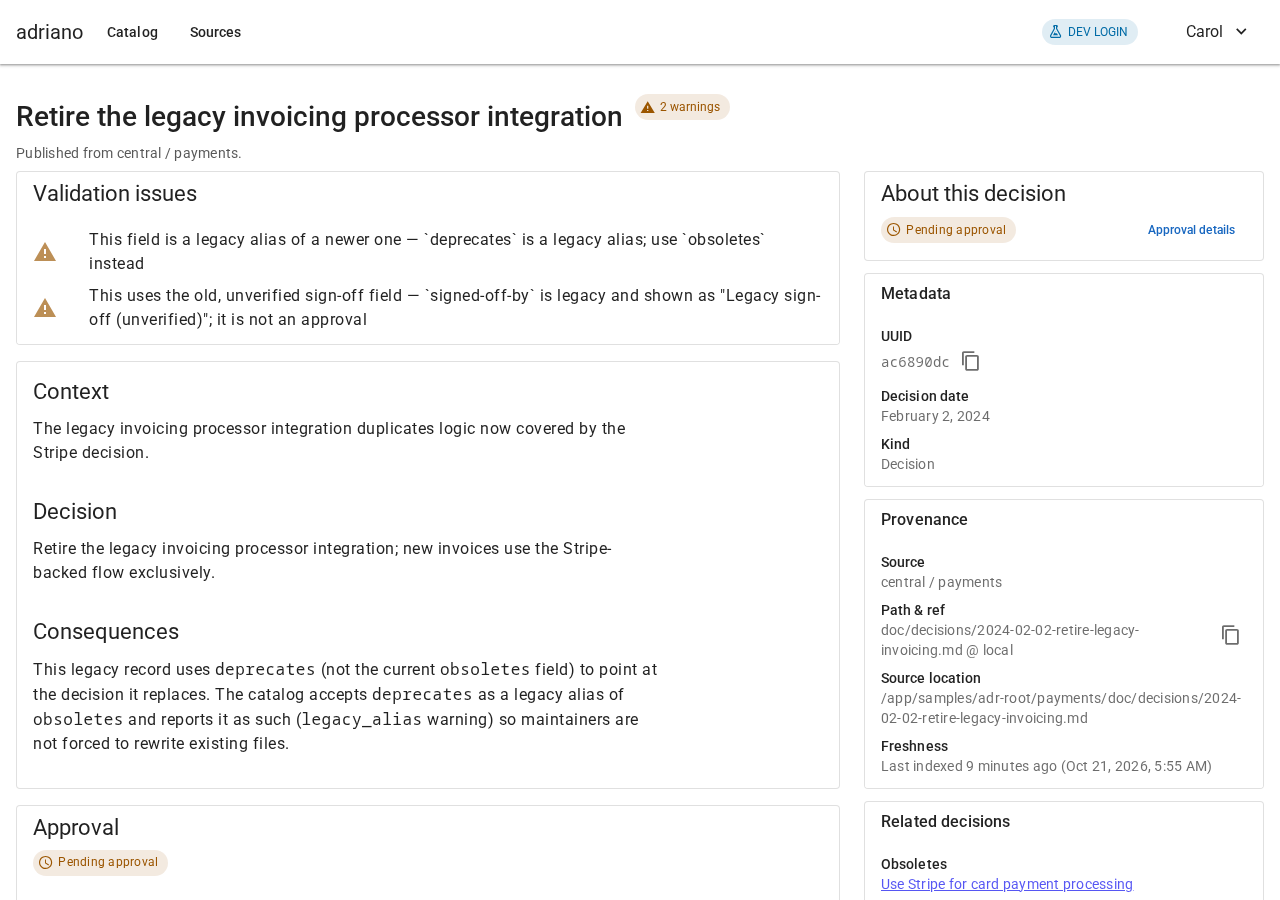
Two warnings about older fields on a decision.
Next: Errata: corrections to decisions or Reviewing decisions.