Reviewing decisions
If you are a reviewer, this page shows how to find decisions that need your verdict, accept or reject them, and check corrections. You need the reviewer role; see Signing in.
Find work to review
Open Catalog.
Turn on Needs approval.
Use Source, Project and the Published/Candidate toggle to narrow the list.
The list shows every decision that is pending, rejected or changed since it was accepted. To review corrections, set Show to Errata or Both.
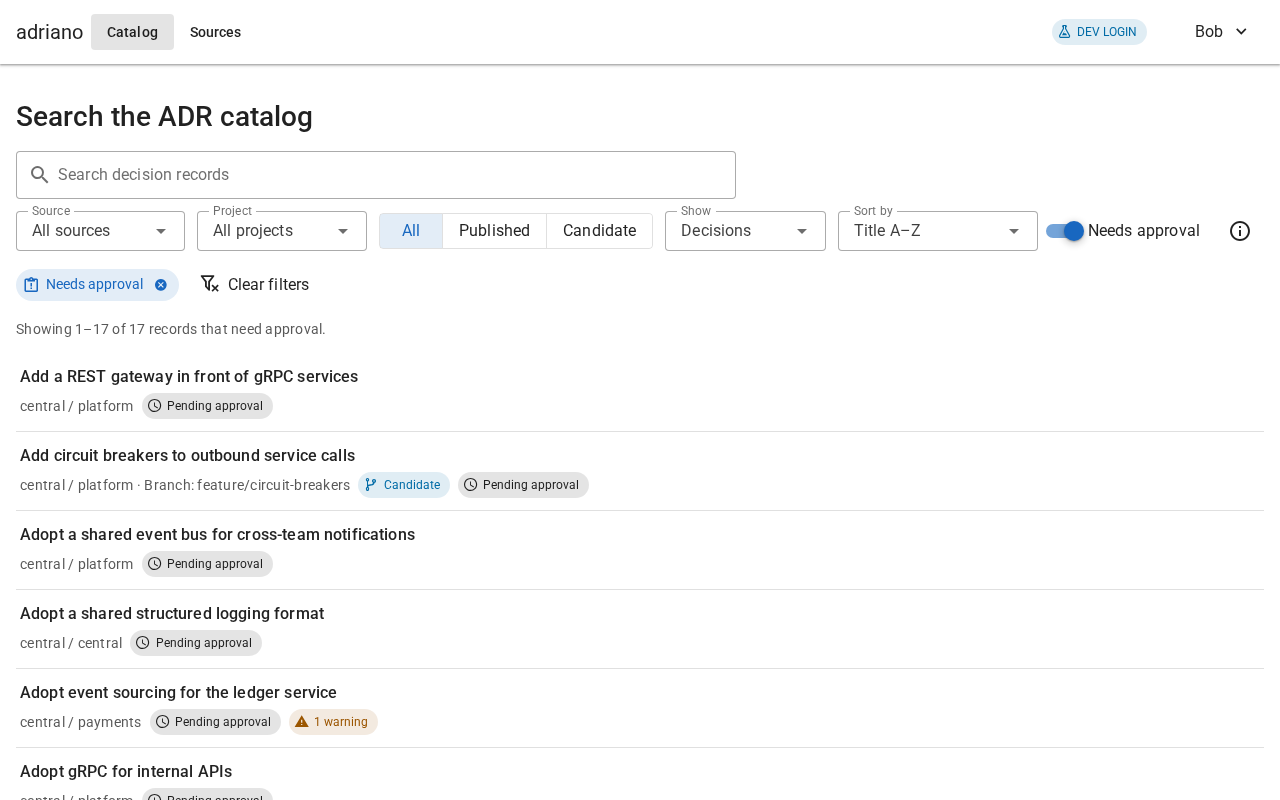
The Needs approval filter.
Accept or reject a decision
Open the decision and read it. Read the whole text: your verdict applies to exactly this text.
Check the banners and Validation issues for anything unusual.
Select Accept or Reject. Both buttons are in the sidebar and in the Approval card.
In the dialog, check the short digest. The digest is a fingerprint of the exact text you are deciding. Select Show full digest to see all of it, or the copy button to copy it.
Write a comment. For an acceptance the comment is optional. For a rejection it is suggested, because it helps the author fix the text.
To reject, tick I confirm I want to reject this exact content.
Select Accept or Reject to confirm.
The page shows “Decision recorded: accepted.” (or “rejected”), and the status changes.
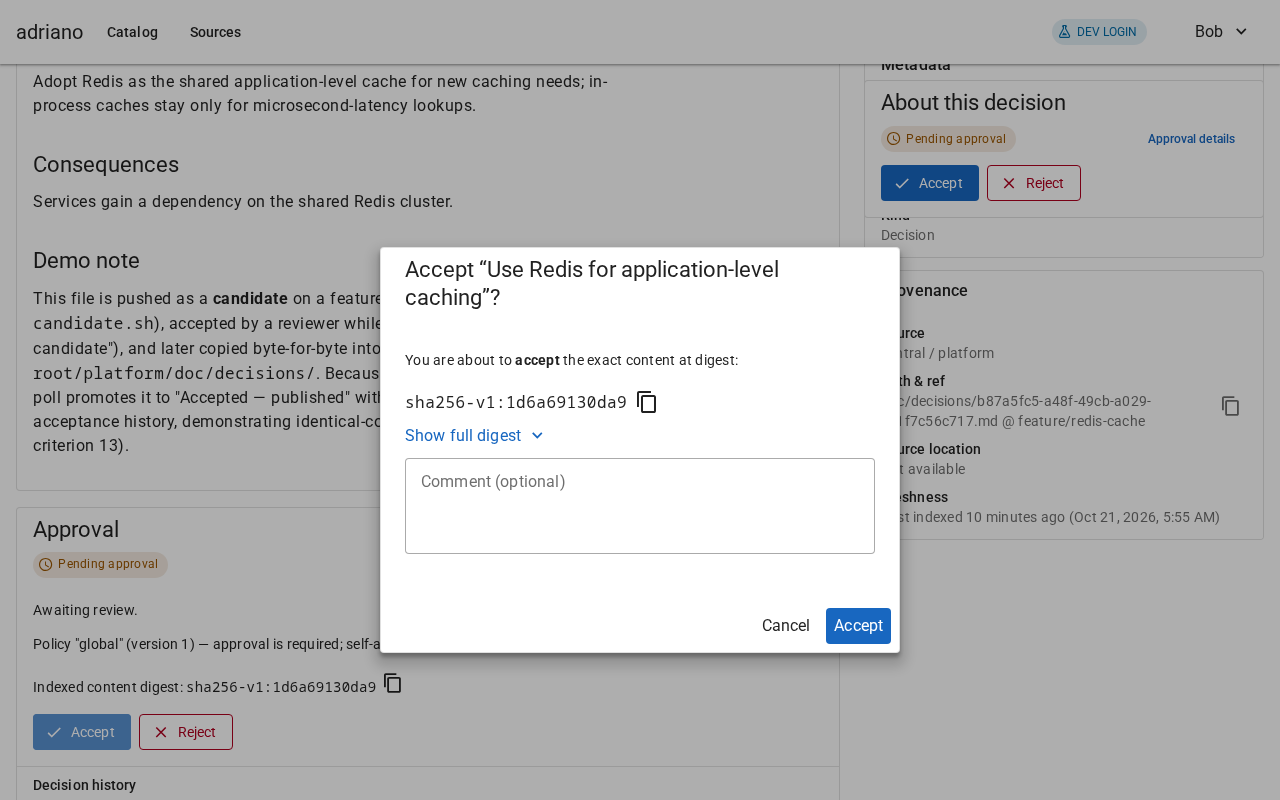
The Accept dialog.
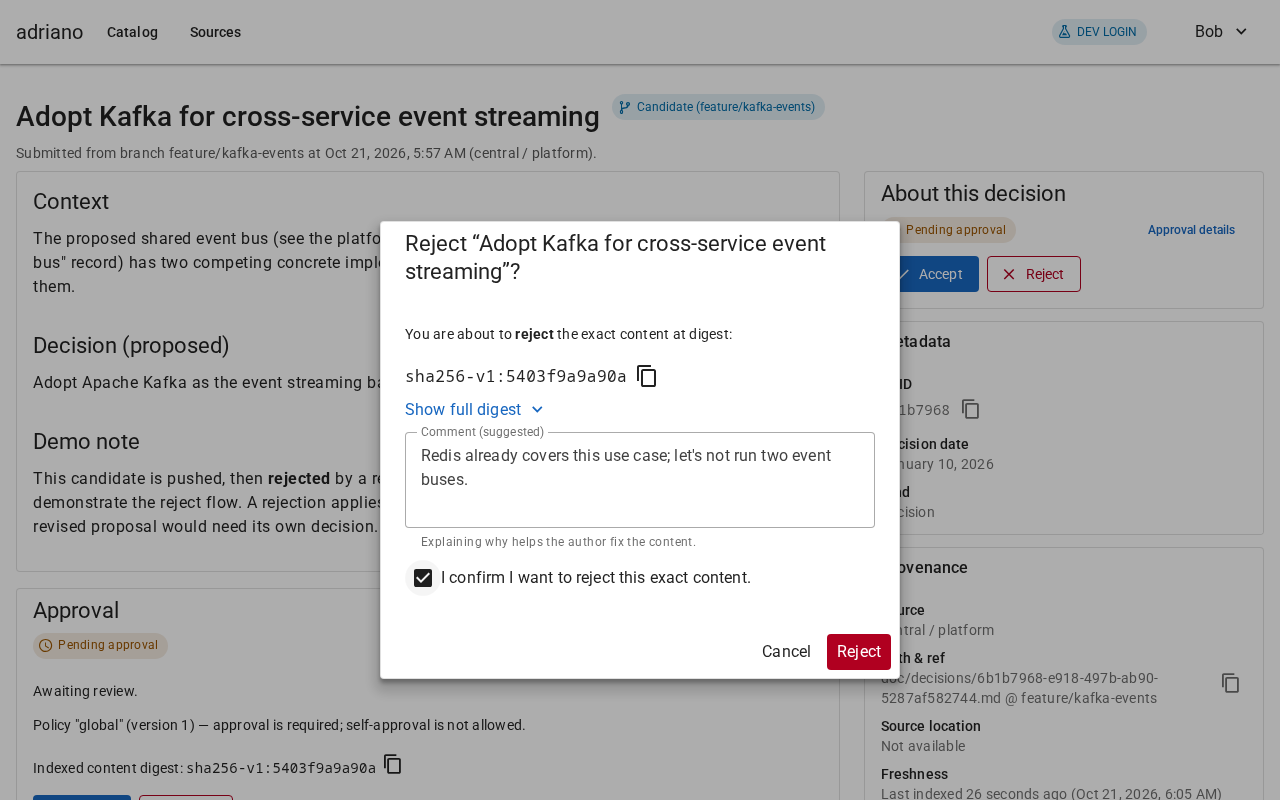
The Reject dialog asks for one extra confirmation.
What your verdict means
It applies to this exact text only. If the text changes later, the verdict no longer covers it.
It cannot be undone or edited. The decision history keeps it forever. If the text changes, a new verdict can be recorded for the new text.
Accepting a candidate does not accept anything else. When the same text is later published, the published version is accepted automatically with the same history.
A rejected candidate stays rejected. A revised proposal has different text and needs its own decision.
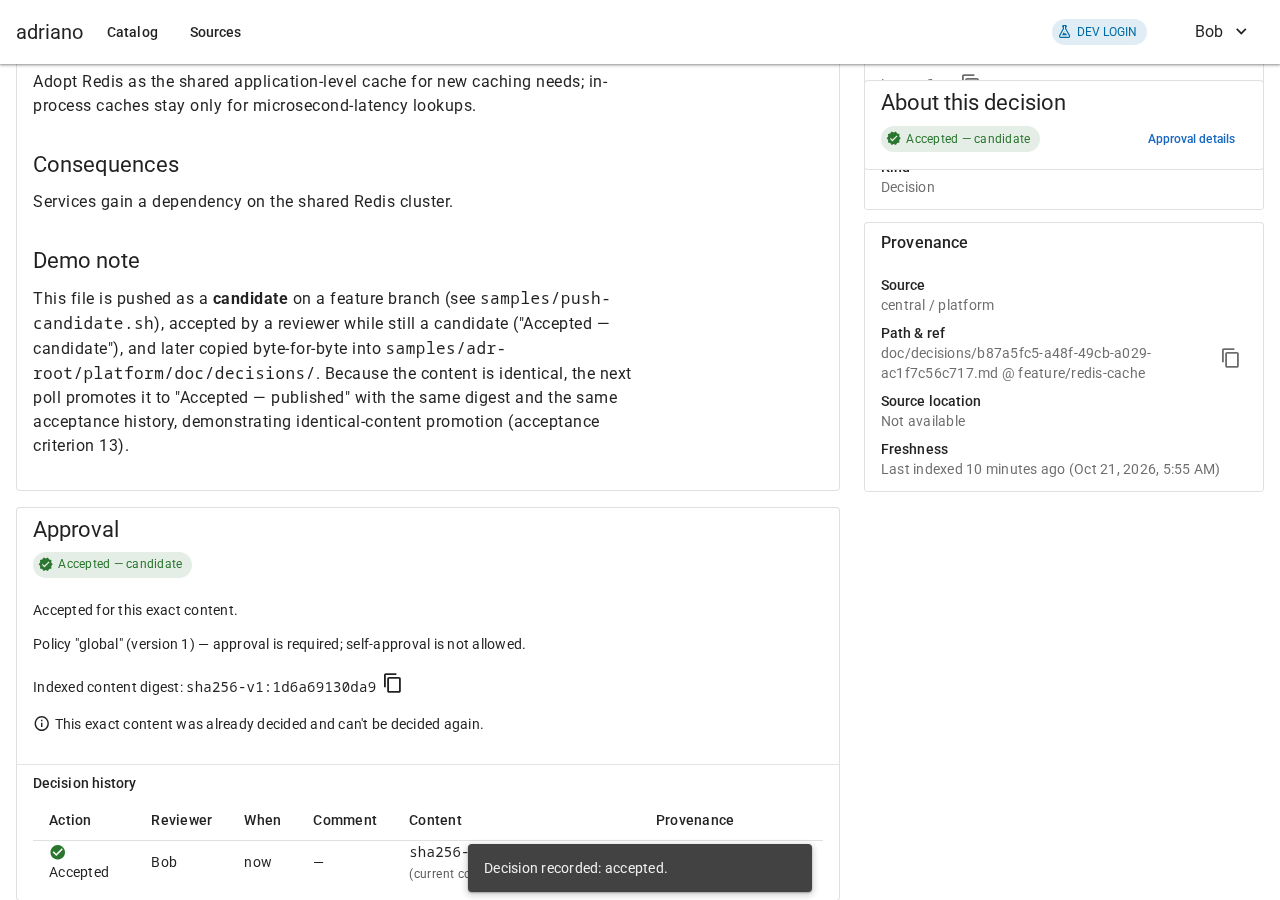
A candidate after it was accepted, with the decision history.
“Changed since acceptance”
This status means an earlier version was accepted, but the text now on the page is different. The accepted version still counts as history, but it does not cover the new text, so the new text needs a new verdict.
Open the decision. The banner explains that a different revision was accepted.
Read the Diff card. It shows the lines added and removed between the last accepted text and the current text. Use Compare from and Compare to to pick other versions.
Accept or reject the new text as usual.
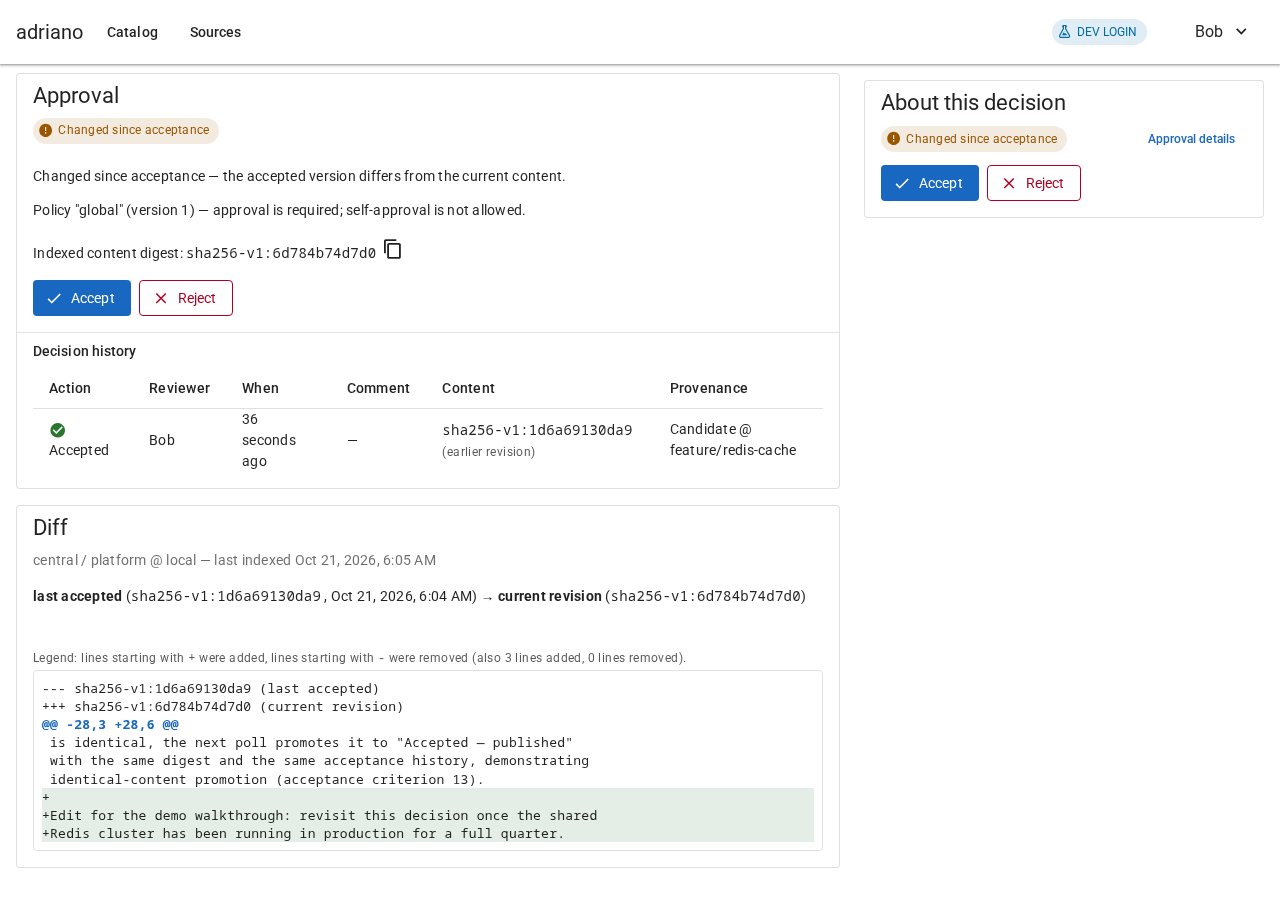
What changed since the last acceptance.
If the text changes while you have a decision open, the page says “The content changed while you were reviewing; review the new revision before deciding.” Read the new text before you decide.
Decision history
The Approval card lists every verdict ever recorded for the decision. Each row shows the action (Accepted or Rejected), the reviewer, the time, the comment, a short digest of the text it applied to and which source and ref it came from.
When you cannot decide
Instead of the buttons you see a short reason:
- Only reviewers can approve this.
Your role does not include review.
- You wrote this content, so you can’t decide it yourself.
Authors cannot approve their own work, if the catalog knows who wrote it. Ask a colleague.
- This exact content was already decided and can’t be decided again.
Someone already recorded a verdict for this exact text.
- This content can’t be decided until its problems are fixed.
The file has an error. See Reading a decision.
- No approval policy is configured, so nothing can be decided yet.
Tell an operator; this is a setup problem.
- This content does not require approval.
Your administrators turned approval off.
- Sign in as a reviewer to decide this.
You are not signed in.
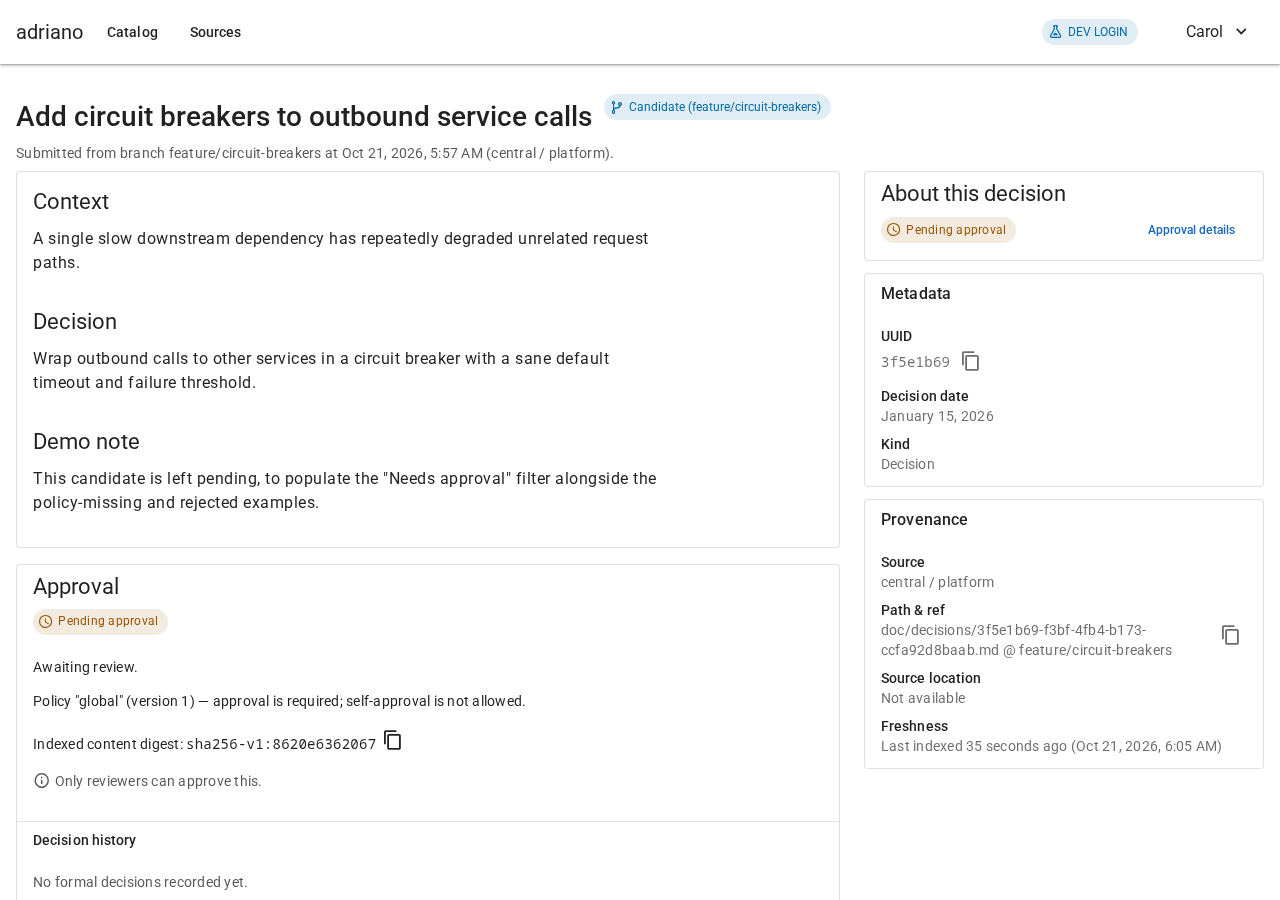
What a reader sees in place of the buttons.
Verify or reject an erratum
Errata are reviewed in the same way, with different words.
Open the erratum (from the Errata section of a decision, or from search).
Compare Original text — says with Corrected text — should say. Check that the correction is accurate.
Select Verify erratum or Reject erratum.
Confirm in the dialog, as for a decision.
The erratum’s status changes to Verified or Rejected. The decision it corrects is not changed in any way.
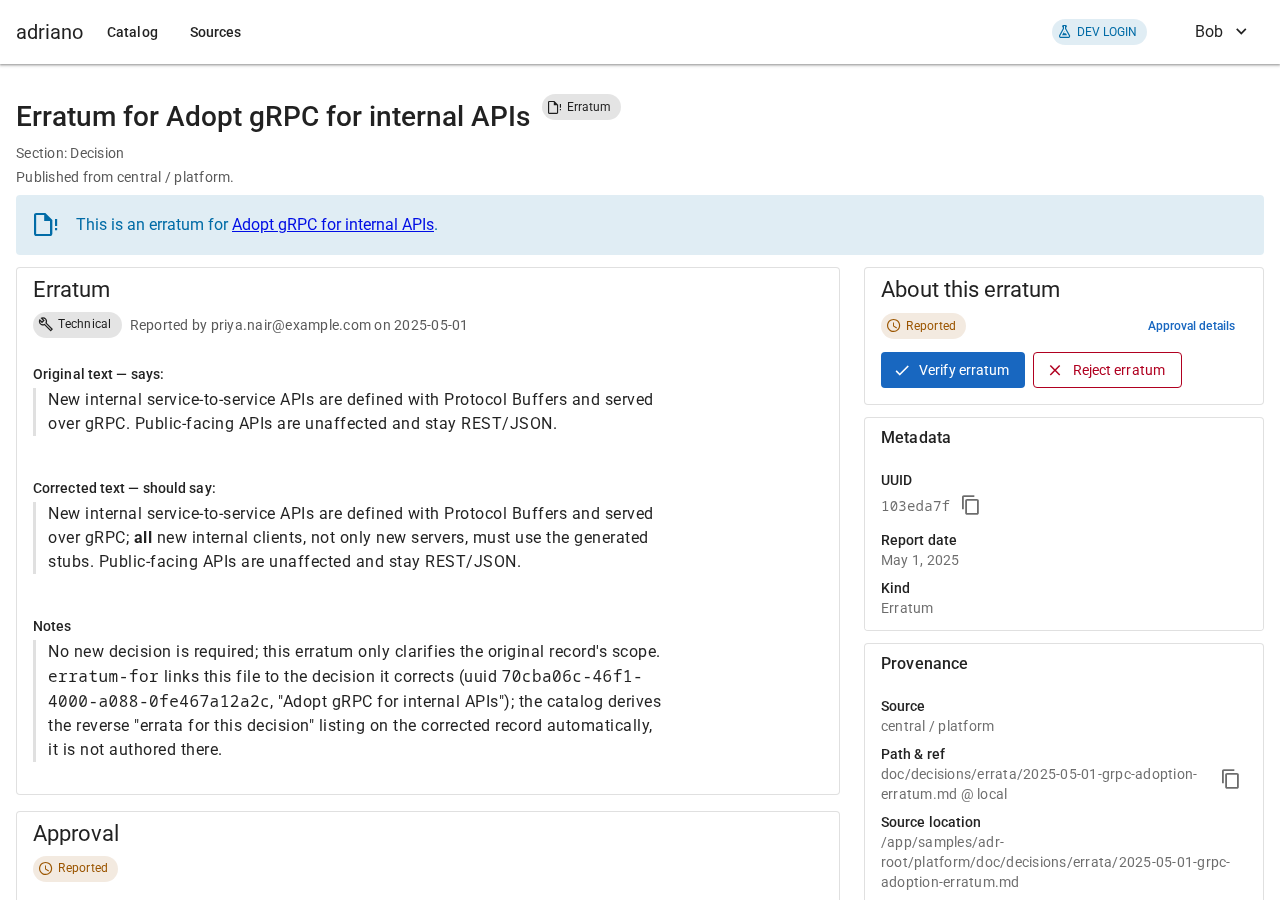
An erratum page as a reviewer sees it.
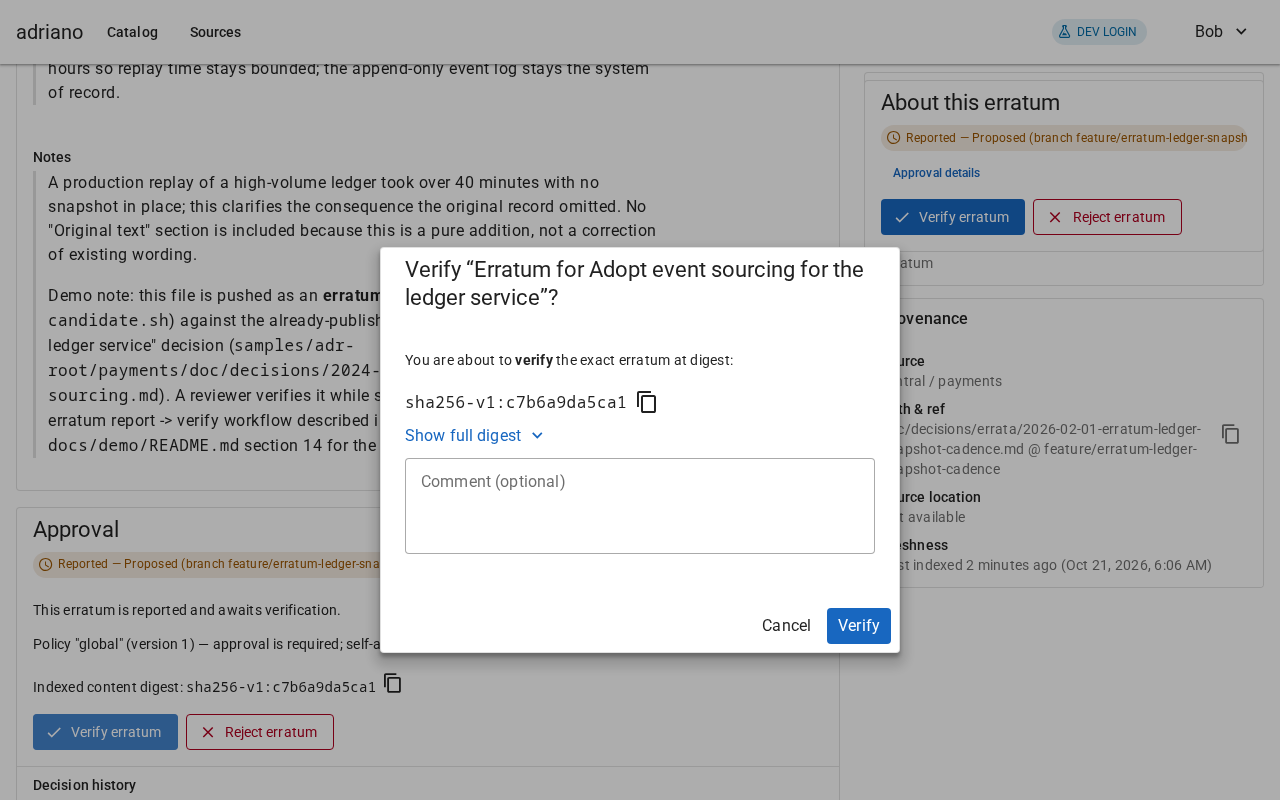
The Verify dialog.